
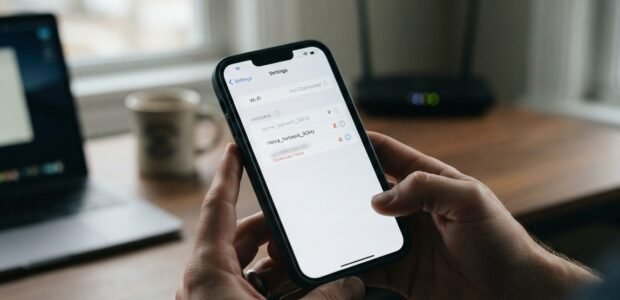

A stable Wi-Fi connection is essential for browsing, streaming, video calls, downloading apps, and staying connected. But if your iPhone keeps disconnecting from Wi-Fi, the problem can quickly become frustrating. The connection may work for a few minutes before dropping, reconnecting repeatedly, or showing that Wi-Fi is connected even though the internet is not working.
For users searching for reliable troubleshooting help, Avenue D Cellular understands how frustrating recurring connectivity problems can be. Whether the issue is caused by network settings, a weak signal, router problems, or an iPhone hardware fault, identifying the actual cause is the first step. If basic troubleshooting does not help, professional cell phone repair brooklyn ny services can help determine whether the problem is related to the device. For more serious iPhone connectivity problems, professional iphone repair brooklyn assistance may also be appropriate.
Table of Contents
- Why Does My iPhone Keep Disconnecting From Wi-Fi?
- Common Causes of iPhone Wi-Fi Disconnections
- Check Whether the Problem Is Your iPhone or Router
- Restart Your iPhone and Wi-Fi Router
- Forget and Reconnect to the Wi-Fi Network
- Check Wi-Fi Signal Strength
- Update Your iPhone Software
- Check VPN and Network Settings
- Reset Network Settings
- When Could It Be an iPhone Hardware Problem?
- How to Prevent Frequent Wi-Fi Disconnects
- Frequently Asked Questions
- Conclusion
- CTA
Why Does My iPhone Keep Disconnecting From Wi-Fi?
There is no single reason why an iPhone may repeatedly disconnect from Wi-Fi. The problem can come from the iPhone itself, the wireless router, the internet connection, or interference affecting the wireless signal.
Common causes include:
- Weak Wi-Fi signal
- Router or modem problems
- Outdated iOS software
- Incorrect network settings
- A corrupted saved Wi-Fi connection
- VPN or security software interference
- Wireless interference
- Problems with a specific Wi-Fi network
- Internal Wi-Fi hardware damage
Before assuming that your iPhone needs repair, it is important to determine whether other devices connected to the same network are experiencing the same problem.
Common Causes of iPhone Wi-Fi Disconnections
1. Weak or Unstable Wi-Fi Signal
Your iPhone may disconnect when you are too far away from the router. Thick walls, floors, furniture, and other obstacles can weaken the wireless signal.
If the Wi-Fi connection becomes unstable when you move to another room, try moving closer to the router. If the connection becomes stable near the router, poor signal strength may be the main cause.
2. Router or Modem Problems
Sometimes the iPhone is not responsible for the disconnections. A router may experience temporary glitches, overheating, outdated firmware, or connection problems with the internet provider.
Check whether laptops, tablets, or other smartphones are also disconnecting. If multiple devices lose their connection at the same time, the router or internet service is more likely to be responsible.
3. Outdated iOS Software
Software updates can include improvements and fixes for wireless connectivity. If your iPhone is running an outdated version of iOS, updating the device may help resolve connection problems.
Go to Settings > General > Software Update and check whether an update is available.
4. Corrupted Wi-Fi Settings
Your iPhone saves information about networks you have previously connected to. Occasionally, saved network information can become problematic, especially after changing a router, password, or network configuration.
Forgetting the network and reconnecting can refresh the saved connection.
5. VPN or Security Software
Some VPN and security applications can interfere with network connections. If Wi-Fi problems started after installing or changing a VPN or security application, temporarily disabling or removing that software can help determine whether it is involved.
Check Whether the Problem Is Your iPhone or Router
One of the easiest ways to identify the source of the problem is to perform two simple tests.
First, connect another device to the same Wi-Fi network. If that device also disconnects, the router or internet service may be responsible.
Second, connect your iPhone to another trusted Wi-Fi network. If your iPhone works normally on another network, your home or office router may be the problem.
If your iPhone disconnects from several different Wi-Fi networks while other devices work normally, the problem may be related to the iPhone’s software or hardware.
Restart Your iPhone and Wi-Fi Router
A simple restart can sometimes resolve temporary connection problems.
Restart your iPhone and allow it to fully boot before reconnecting to Wi-Fi. You can also restart your router and modem by disconnecting their power, waiting briefly, and reconnecting them.
After the router comes back online, reconnect your iPhone and check whether the connection remains stable.
This is a simple step, but it can eliminate temporary communication problems between the phone and router.
Forget and Reconnect to the Wi-Fi Network
If your iPhone keeps disconnecting from one particular network, forgetting that network can be useful.
Go to:
Settings > Wi-Fi > Tap the information button next to the network > Forget This Network
Afterward, select the network again and enter the Wi-Fi password.
This creates a fresh connection between your iPhone and the router and can resolve problems caused by outdated or corrupted network information.
Check Wi-Fi Signal Strength
Distance and interference can have a major effect on Wi-Fi stability.
Try using your iPhone closer to the router. If the connection becomes significantly more reliable, the problem may be related to signal strength rather than the iPhone itself.
Other wireless networks and electronic devices can also contribute to interference. If possible, place the router in an open and central location rather than inside a cabinet or behind large objects.
Update Your iPhone Software
Keeping iOS updated can help maintain compatibility with modern network equipment and address software-related problems.
To check for updates:
Settings > General > Software Update
If an update is available, back up important information and install the update according to Apple’s instructions.
If your Wi-Fi problem started immediately after an update and continues afterward, additional troubleshooting may be necessary.
Check VPN and Network Settings
If you use a VPN, security application, or other network-management software, check whether the problem continues when the service is disabled.
You should also make sure Airplane Mode is turned off and Wi-Fi is enabled.
If the problem continues despite these checks, resetting the network settings can be a more advanced troubleshooting step.
Reset Network Settings
Resetting network settings can resolve persistent connection problems when simpler solutions have failed.
The option is generally found under:
Settings > General > Transfer or Reset iPhone > Reset > Reset Network Settings
Keep in mind that this removes saved Wi-Fi networks and passwords along with other network-related settings. Make sure you know your important Wi-Fi passwords before performing the reset.
This should generally be considered after simpler troubleshooting methods have been attempted.
When Could It Be an iPhone Hardware Problem?
Most Wi-Fi problems are related to settings, software, routers, or network conditions. However, hardware damage is possible.
An iPhone may develop wireless connectivity problems after:
- Being dropped
- Experiencing liquid exposure
- Suffering internal component damage
- Undergoing an unsuccessful previous repair
- Developing an internal Wi-Fi antenna or component fault
Hardware problems become more likely if the iPhone disconnects from multiple reliable Wi-Fi networks while other devices remain connected.
If Wi-Fi problems began after physical damage, professional inspection can help determine whether an internal component needs attention.
How to Prevent Frequent Wi-Fi Disconnects
Once your Wi-Fi connection is stable again, a few habits can help reduce future problems:
- Keep iOS updated.
- Keep your router firmware updated.
- Place the router in a suitable location.
- Avoid using Wi-Fi from extremely weak-signal areas.
- Restart your router occasionally if it becomes unstable.
- Remove unnecessary VPN or security applications.
- Keep your iPhone free from unnecessary network configuration changes.
- Test other devices when Wi-Fi problems occur.
The most important step is identifying whether the problem follows your iPhone or stays with a particular Wi-Fi network.
Frequently Asked Questions
Why does my iPhone disconnect from Wi-Fi every few minutes?
This can happen because of weak signal strength, router problems, incorrect network settings, software issues, or wireless interference. Testing another Wi-Fi network can help identify whether the problem is with the phone or your router.
Why does my iPhone disconnect from Wi-Fi when I move around?
Moving farther from the router can weaken the Wi-Fi signal. Interference or switching between wireless access points can also contribute to unstable connections.
Should I restart my router if only my iPhone has Wi-Fi problems?
You can restart it, but if every other device works normally, the issue may be specific to your iPhone. Test your iPhone on another Wi-Fi network to narrow down the cause.
Will resetting network settings delete my photos?
No. Resetting network settings does not normally erase your photos, videos, apps, or personal files. However, it removes saved Wi-Fi networks, passwords, and other network-related settings.
Can a damaged iPhone cause Wi-Fi problems?
Yes. Although software and network problems are more common, physical or liquid damage can affect internal wireless components and cause unstable Wi-Fi connections.
When should I get professional iPhone repair?
If your iPhone disconnects from multiple reliable Wi-Fi networks after you’ve tried software and network troubleshooting, professional diagnosis may be worthwhile. This is especially important if the problem started after a drop, liquid exposure, or previous repair.
Conclusion
An iPhone that keeps disconnecting from Wi-Fi can be caused by anything from a weak wireless signal and router problems to outdated software or incorrect network settings. Start with simple troubleshooting, including restarting your iPhone and router, checking the Wi-Fi signal, forgetting and reconnecting to the network, and updating iOS.
If the problem continues across multiple networks, the iPhone itself may require further diagnosis. Avenue D Cellular can help users identify whether persistent connectivity problems are software-related or potentially connected to internal hardware. For dependable cell phone repair brooklyn ny assistance, professional troubleshooting can help prevent unnecessary replacements. And when a more serious device issue is involved, trusted iphone repair brooklyn services can provide the inspection needed to find the underlying cause.
CTA
Still dealing with an iPhone that keeps disconnecting from Wi-Fi?
Don’t let repeated connection drops interfere with calls, streaming, browsing, or everyday tasks. Contact Avenue D Cellular for professional iPhone troubleshooting and repair assistance. Get your device checked and find the right solution for a more reliable connection.