
Introduction: The Logo Problem Every Babylock Owner Faces
You just bought a beautiful Babylock embroidery machine. The touchscreen is bright, the needles are sharp, and you are ready to stitch your first logo. You load a JPG onto a USB drive, plug it in, and nothing happens. The machine stares back at you with a blank screen.
Here is the hard truth that nobody tells you before you buy the machine. Your Babylock does not speak JPG. It does not understand PNG. It craves a specific language called PES or PEC . And getting from your ordinary logo to a stitch-ready file requires a process called digitizing.
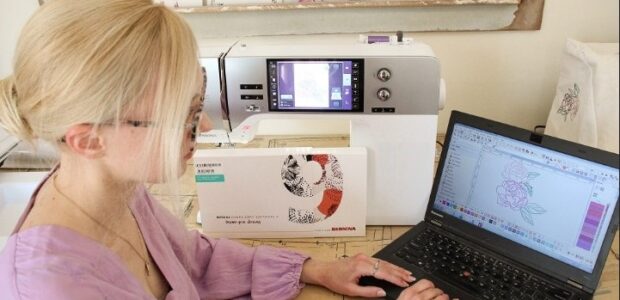
The good news? You have several fast and reliable ways to Convert Logo To Embroidery For Babylock. Some methods cost money. Some cost time. All of them work if you know what you are doing. In this guide, I will walk you through every option, from professional services to DIY software to free tools. No confusing jargon. Just real steps that actually work.
Why Your Babylock Refuses to Read JPG Files
Let me explain what is happening behind the scenes. A JPG or PNG file contains pixels. Tiny colored dots that form a picture when viewed from a distance. Your Babylock machine does not care about pixels. It cares about stitches .
A Babylock-readable file, usually PES or PEC, contains detailed embroidery instructions . Each PES file tells your machine exactly where to plunge the needle, how far to move, what direction to stitch, when to change thread colors, and how dense the stitches should be .
Converting from a pixel image to a stitch file is not a simple save-as operation. It requires a process called digitizing. A skilled digitizer looks at your logo and makes hundreds of tiny decisions. What type of stitch works best for that curved line? How dense should the fill be so the fabric does not pucker? Where should the underlay go to stabilize the fabric? How much pull compensation is needed so a circle does not stitch out looking like an egg ?
Understanding this helps you appreciate why the methods below cost what they cost and take the time they take.
Method One: Professional Digitizing Services (Fastest and Most Reliable)
If you need your logo converted yesterday and you want it done right the first time, hire a professional digitizing service. This is the fastest and most reliable method, hands down.
Here is how it works. You upload your logo to a service like Absolute Digitizing, Digitizing Buddy, or Cool Embroidery Design. You tell them your desired size, the fabric type, and that you need a PES file for Babylock. Their team digitizes your logo manually, tests the file, and sends it back usually within a few hours to a day.
Professional digitizing typically costs between ten and twenty dollars for a standard logo. Complex designs with tiny text or intricate details cost more, sometimes up to one hundred dollars for large jacket backs. Rush orders with two-hour turnaround usually add a small fee.
Why pay for this when free tools exist? Because professional digitizers understand pull compensation, underlay, and stitch density. They know that a design that looks perfect on screen can stitch out terribly on fabric. They test their files before sending them to you. Free tools skip all of this.
Method Two: DIY Digitizing with Professional Software (Most Control)
If you plan to digitize logos regularly, investing in software makes financial sense. Professional digitizing software gives you complete control over every stitch parameter.
Wilcom and Hatch are the industry standards . They offer the most features, the best stitch quality, and the widest Babylock compatibility. You can import your logo, manually assign stitch types, adjust density, add underlay, set pull compensation, and export directly to PES format. The downside? They cost several hundred to over a thousand dollars and require serious learning time.
Brother PE-Design is another solid option that works well with Babylock machines since both brands share the PES format . It is slightly more beginner-friendly but still requires dedicated study.
The workflow for DIY digitizing typically follows these steps. Import your logo into the software. Set the design size to match your project. Assign satin stitches for borders and letters, fill stitches for larger areas, running stitches for fine details. Add underlay stitches to stabilize the fabric. Adjust stitch density so the design is neither too stiff nor too sparse. Apply pull compensation to prevent fabric distortion. Arrange the thread color sequence for efficient stitching. Export as a PES file. Then test stitch on scrap fabric .
Be honest with yourself about the learning curve. Most people spend weeks or months getting consistently good results. If you only digitize a few logos per year, professional services are almost certainly cheaper and faster.
Method Three: Free and Low-Cost Tools (Budget-Friendly but Limited)
You do not need to spend a fortune to convert a logo for your Babylock. Several free and low-cost options exist, though each comes with trade-offs.
InkStitch with Inkscape is the most powerful free option . InkStitch is an open-source plugin that runs inside Inkscape, which is a free vector graphics program. You can convert your logo to a vector, then use InkStitch to assign stitch types, directions, and densities. The results can be genuinely good. The catch? The learning curve is steep. You need to understand vector editing and embroidery concepts. Plan to invest serious time watching tutorials.
SewArt offers a 30-day free trial that is perfect for one-off projects . The built-in Image Wizard guides you through color reduction and background removal. You can auto-digitize with a few clicks. The trial version limits you to six colors per design, which is often enough for simple logos. If you like it, the full version is reasonably priced.
Online converters like Convertio promise rapid JPG-to-PES conversion with minimal fuss . I need to be blunt about these. They often produce terrible results. Automated conversion leads to stitch distortion, color loss, and poor embroidery quality. The files might load on your Babylock, but they will stitch out looking messy. Only use online converters for simple, low-stakes personal projects. Never use them for client work or products you plan to sell.
Method Four: Vector First, Then Digitize (The Pro Approach)
Professional digitizers almost always start with vector files rather than pixel-based images. Vectors use mathematical formulas instead of pixels, which means they scale infinitely without losing quality .
If your logo exists only as a JPG or PNG, consider converting it to a vector before digitizing. Vector files give digitizing software clean, sharp edges to work with, which translates to cleaner stitches. You can convert to vector using Adobe Illustrator, the free tool Inkscape, or online services like Vectorizer.ai.
Once you have a vector file, you can import it into any digitizing software and get better results than starting from a pixelated image.
Step-by-Step: Converting Your Logo Right Now
Let me give you a simple action plan based on your situation.
If you need the logo today and quality matters, go to a professional digitizing service like Absolute Digitizing or Digitizing Buddy. Upload your logo, request PES format for Babylock, specify your fabric type, and pay the ten to twenty dollars. You will have a working file in hours.
If you plan to digitize regularly and want to learn, download InkStitch and Inkscape. Watch a few YouTube tutorials. Convert your logo to a vector first, then use InkStitch to assign stitches. Expect to spend a weekend getting your first good result.
If you just want to experiment on a personal project, try the SewArt free trial. Keep the design simple. Use six colors or fewer. Test on scrap fabric before stitching your final garment.
If a friend sends you a poorly digitized file that stitches badly, do not waste time trying to fix it. Pay a professional to redo it correctly. Bad files cause thread breaks, fabric puckering, and wasted time. The ten dollars is almost always worth it.
Conclusion: Your Babylock Deserves Better Than Bad Files
Your Babylock embroidery machine is a precision tool. It can produce stunning, professional-quality logos, monograms, and designs. But it needs the right instructions. Feed it properly digitized PES files, and it will stitch cleanly all day long. Feed it poorly converted JPGs, and you will spend your days fighting thread breaks and puckered fabric.
You have four clear paths forward. Hire a professional service for speed and reliability. Learn professional software for complete control. Use free tools like InkStitch if you have time to learn. Or try online converters for simple personal projects only.
Pick the path that matches your budget, your timeline, and your patience level. But please, stop feeding your Babylock files it was never designed to read. Give it clean PES files. Give it proper digitizing. And watch your embroidery transform from frustration to pure satisfaction. Your machine will thank you. Your thread will stop snapping. And you will finally enjoy embroidery day instead of dreading it.